
Forms are one of the most important conversion tools on any WordPress site, and also one of the most misunderstood. Businesses spend time and money driving traffic, optimizing pages, and refining messaging, only to lose potential leads at the form stage due to poor design, unnecessary friction, or weak functionality.
Most underperforming forms fail for simple reasons: they ask for too much, load slowly, confuse users, or don’t adapt to user intent. A form that looks fine visually can still leak conversions if it isn’t structured properly.
This is where Gravity Forms stands apart. It’s not just a contact form plugin; it’s a full workflow engine designed to collect better leads, automate processes, and support complex business logic. When used correctly, Gravity Forms can dramatically improve submission rates, lead quality, and operational efficiency.
In this guide, you’ll learn how to use Gravity Forms like a pro. You’ll not only master how to build forms, but to build high-converting, business-ready systems that work reliably and scale with your site.

What Is Gravity Forms and When Should You Use It?
Gravity Forms is a WordPress form builder designed for collecting leads, automating workflows, processing payments, and routing submissions based on user input. It’s best used when a business needs more than a basic contact form, such as quote generators, onboarding forms, booking requests, or applications.
Why Gravity Forms Is Different From Basic Form Plugins
Many WordPress form plugins are designed for simplicity: name, email, message, send. That’s fine for hobby sites, but businesses quickly outgrow those limitations.
Gravity Forms is built for processes, not just submissions. It’s designed to handle logic, data, payments, integrations, and decision-making inside the form itself. This is why it’s widely used by agencies, ecommerce stores, service businesses, and membership platforms.
What makes Gravity Forms fundamentally different is how deeply it integrates into WordPress and how much control it gives you over user flow. Forms can change behavior based on user input, trigger actions automatically, and adapt to different use cases without custom code.
Instead of forcing every visitor through the same static form, Gravity Forms lets you create dynamic experiences, shorter forms for some users, more detailed workflows for others. This flexibility is what allows businesses to collect better data with less friction.
Gravity Forms Tutorial: Build Your First Form (Quick Walkthrough)
Before diving into strategies and optimization, it helps to see how Gravity Forms actually works in practice. The video below walks through building a real form inside WordPress, so you can understand the interface, field options, and logic structure you’ll be optimizing throughout this guide.
You don’t need to memorize every step, just focus on how forms are structured and how user input controls what happens next.
Now that you’ve seen the basics, the rest of this guide focuses on turning those mechanics into high-converting workflows; the difference between a working form and a profitable one.
Core Gravity Forms Features You Should Actually Be Using
Gravity Forms comes with a long list of features, but high-performing forms usually rely on a small group of core tools used strategically.
| Gravity Forms Feature | What It Does | Why It Matters for Conversions |
| Conditional Logic | Shows or hides fields based on user responses in real time | Shortens forms, removes irrelevant questions, and personalizes the experience, leading to fewer abandoned submissions and better-qualified leads |
| Multi-Page Forms | Breaks long forms into smaller steps with progress indicators | Makes longer forms feel manageable, reduces overwhelm, and significantly improves completion rates |
| Calculations | Performs real-time pricing or total calculations based on user input | Delivers instant quotes or fees, speeds up decisions, and builds trust by removing guesswork |
| Save & Continue | Allows users to pause and finish a form later | Recovers leads that would otherwise be lost when users aren’t ready to complete a form in one session |
| Notifications & Confirmations | Controls what happens after submission (emails, redirects, messages) | Ensures submissions reach the right people instantly and guides users to the next step instead of leaving them uncertain |
Conditional Logic
Conditional logic allows your form to adapt in real time. Fields can appear, disappear, or change based on previous answers. This reduces form length, avoids irrelevant questions, and makes the experience feel personalized.
Example: A roofing company can ask whether the issue is “storm damage” or “age-related wear.” If the visitor selects storm damage, the form shows insurance fields and claim details. If not, those questions stay hidden, keeping the form short and relevant.
Multi-Page Forms
Long forms scare users, but sometimes long forms are unavoidable. Multi-page forms solve this by breaking a form into digestible steps, improving completion rates without sacrificing data collection.
Progress indicators also give users a sense of momentum, which significantly reduces drop-off for onboarding, applications, and quote requests.
Example: A gym membership signup can split into three steps — personal info, fitness goals, and schedule preferences. Each step feels simple, but together they collect all onboarding details without overwhelming the user.
Calculations
Gravity Forms can perform real-time calculations based on user input. This is commonly used for quotes, pricing estimators, booking fees, and custom orders.
Instead of manual follow-ups or spreadsheets, businesses can provide instant feedback, which speeds up decision-making and increases trust.
Example: A web design agency can calculate project estimates automatically based on number of pages, ecommerce features, and timeline. The visitor sees an instant budget range before submitting, reducing back-and-forth emails.
Save & Continue
Not every user is ready to complete a form in one sitting. The Save & Continue feature allows users to pause and resume later, which is especially valuable for longer applications, onboarding forms, or multi-step processes.
This feature alone can recover leads that would otherwise be lost entirely.
Example: A scholarship application lets students upload documents and write essays later. Instead of abandoning the form, they save progress and return — dramatically increasing completed applications.
Notifications and Confirmations
Gravity Forms allows precise control over what happens after submission. Notifications can be routed to different teams, triggered conditionally, or customized based on user input.
Confirmations can display messages, redirect users, or trigger next steps, turning a simple submission into a guided experience instead of a dead end.
Example: A repair service can send different notifications depending on the issue selected, plumbing requests go to technicians, billing questions go to support, and urgent issues trigger SMS alerts.
Designing High-Converting Forms (UX Best Practices)
Even the most advanced Gravity Forms setup will underperform if the form itself is frustrating to use. High-converting forms are built around user experience first. This reduces friction, setting expectations clearly, and guiding users naturally toward completion. The goal isn’t to collect more information; it’s to collect the right information with the least resistance.
High-performing Gravity Forms share a few core UX principles:
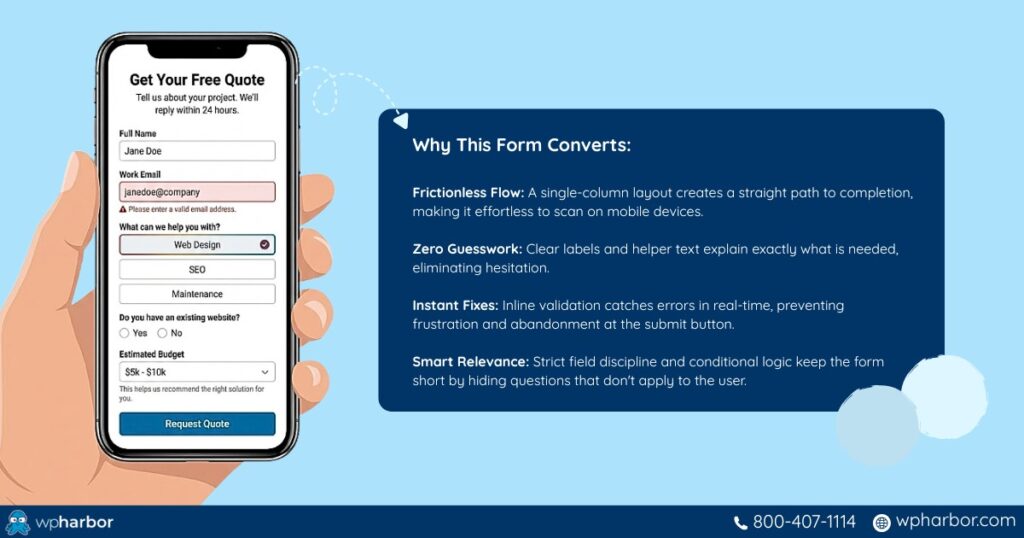
- Strict field discipline: Every field adds effort. If a field doesn’t directly support qualification, processing, or follow-up, it shouldn’t be required. Gravity Forms makes it easy to remove unnecessary fields or show them only when relevant using conditional logic.
- Simple, single-column layouts: Single-column forms are easier to scan, reduce errors, and perform better on mobile. Multi-column layouts may look compact, but they slow users down and increase mistakes.
- Clear labels and helpful context: Users shouldn’t have to guess what information you’re asking for. Clear labels, short descriptions, and examples reduce hesitation and prevent incorrect submissions.
- Inline validation instead of error pages: Catching errors immediately (instead of after submission) prevents frustration and reduces abandonment. Gravity Forms’ inline validation helps users fix issues as they happen.
- Mobile-first thinking: A large percentage of form submissions happen on phones. Forms must load quickly, be easy to tap, and feel smooth on smaller screens.
When these principles are applied consistently, forms stop feeling like chores. They feel more like guided conversations. Users understand what’s being asked, why it matters, and what happens next, which is exactly what drives higher completion rates and better lead quality.
Advanced Gravity Forms Techniques Pros Use
Once you move beyond basic contact forms, Gravity Forms becomes a powerful system for automation, qualification, and workflow management. This is where experienced users unlock its real value, not by adding complexity, but by using its features strategically.
Professionals commonly rely on these advanced techniques:
- Lead qualification through logic paths: Instead of sending every visitor through the same form, conditional logic routes users based on intent, budget, urgency, or service type. This reduces low-quality leads and gives teams better context before follow-up.
- Dynamic pricing and instant quotes:Calculations allow forms to generate real-time pricing based on user selections. This is especially useful for services, bookings, custom products, and consultations, eliminating manual estimates and speeding up decisions.
- Client onboarding and internal workflows: Gravity Forms is often used to onboard new clients, members, or students by collecting documents, preferences, agreements, and setup details in one structured flow.
- Agreements, waivers, and confirmations: Built-in confirmations and e-signature support allow businesses to collect acknowledgments and consent without relying on third-party platforms.
- Partial entry tracking: Even when a user doesn’t finish a form, Gravity Forms can capture partial data. This reveals where users drop off and enables targeted follow-ups that recover leads that would otherwise be lost.
Taken together, these techniques turn Gravity Forms into more than a form builder. They turn it into a business tool. It’s one that qualifies leads before they reach your inbox, automates routine processes, and reduces manual work behind the scenes. That’s why professionals don’t just use Gravity Forms; they design systems around it.
Payments, Automations, and Integrations
Gravity Forms isn’t limited to collecting information; it can also collect payments and trigger business workflows automatically.
With payment integrations like Stripe, Gravity Forms supports one-time payments, deposits, subscriptions, and service fees. This makes it ideal for service-based businesses that don’t need a full ecommerce store but still want to accept payments securely.
Beyond payments, Gravity Forms integrates seamlessly with CRMs, email platforms, and automation tools through native add-ons or services like Zapier. Form submissions can:
- Add leads to CRM pipelines
- Trigger email sequences
- Create tasks or tickets
- Sync data across tools
This turns forms into connectors between marketing, sales, and operations. Instead of manually transferring data, businesses let Gravity Forms handle it in real time, reducing errors and saving hours of administrative work.
When combined with reliable hosting and proper configuration, these automations run quietly in the background, doing work without creating new points of failure.
Common Gravity Forms Mistakes (And How to Avoid Them)
Even powerful tools can underperform when misused. The most common Gravity Forms mistakes are surprisingly consistent.
Many businesses overload forms with unnecessary fields, increasing abandonment rates. Others forget to define a clear confirmation or next step, leaving users unsure whether their submission worked.
Another frequent issue is ignoring mobile behavior. Forms that work fine on desktop can become frustrating on smaller screens if spacing, field order, or validation isn’t considered.
Spam protection is also often overlooked. Without proper anti-spam measures, forms become targets for bots, filling inboxes and databases with junk submissions.
Finally, forms are sometimes deployed without considering performance and reliability. On weak hosting, submissions can fail, notifications don’t send, or users experience delays – all of which silently cost leads.
Avoiding these mistakes doesn’t require advanced skills; it requires thoughtful setup, testing, and a stable environment.
Performance, Security, and Reliability Considerations
Forms are only as reliable as the infrastructure supporting them. Gravity Forms relies on server processing, database writes, and email delivery, which depend on hosting quality.
On underpowered hosting, form submissions may lag, fail, or time out under load. This is especially risky for high-traffic sites, paid campaigns, or time-sensitive inquiries.
Security is equally important. Forms are common attack targets, especially those accepting payments or file uploads. Proper server-level security, updates, and monitoring are critical to keeping submissions safe.
This is why Gravity Forms performs best on managed WordPress hosting environments that prioritize speed, security, and uptime. When the infrastructure is solid, forms become dependable business tools instead of fragile points of failure.

Forms Aren’t Just Forms
Forms sit at the intersection of marketing, sales, and operations. When they’re poorly built, they quietly leak conversions and create manual work. When they’re built well, they become engines that drive growth, efficiency, and better customer experiences.
Gravity Forms gives businesses the tools to build forms that adapt, automate, and scale. Learning how to use Gravity Forms like a pro means thinking beyond “contact forms” and designing systems that work even when you’re not watching.
With WP Harbor Managed Hosting, Gravity Forms is included as part of a premium plugin bundle, fully licensed, maintained, and supported. That means you can focus on building better workflows and conversions, not managing tools.
Turn your forms into business assets.
Explore WP Harbor’s Managed WordPress Hosting and premium plugin bundle, and start using Gravity Forms to its full potential.